Using Apple CarPlay
With a compatible head unit in your 4WD you can load Overland Navigator up on your Apple CarPlay display to browse tracks and campsites, check details, and start turn-by-turn guidance without picking up your phone.
Apple CarPlay currently requires an active Navigator All Access subscription for the full in-car navigation flow.
Make sure your phone is connected to your car
Open Overland Navigator on your CarPlay screen
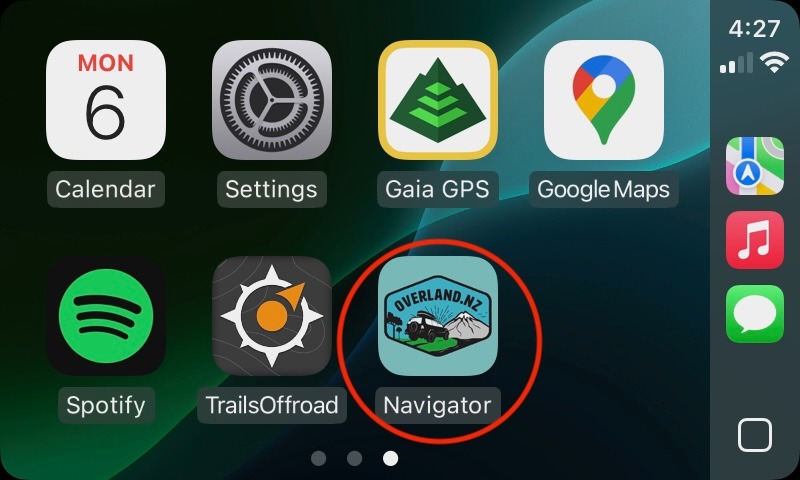
If Overland Navigator doesn’t launch, open it on your phone first
The default view opens around your current location and shows the map controls.
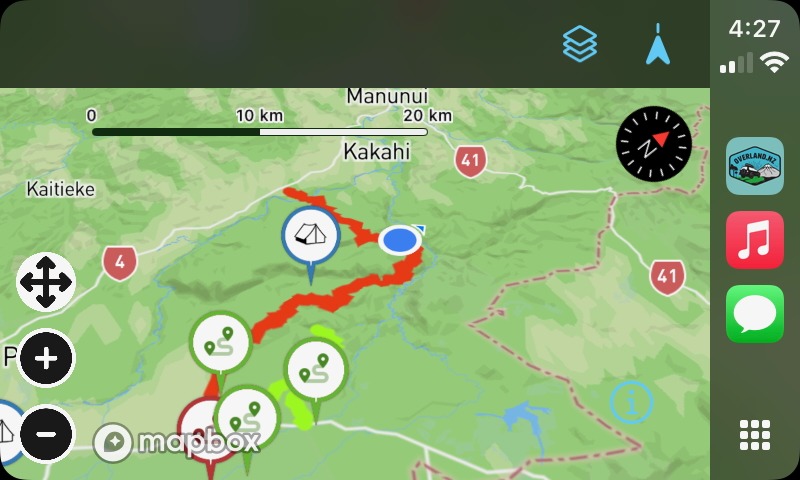
Use the controls to:
- Re-centre your position
- Zoom in or zoom out
- Change layers
- Open What’s here to browse tracks and campsites currently visible on the map
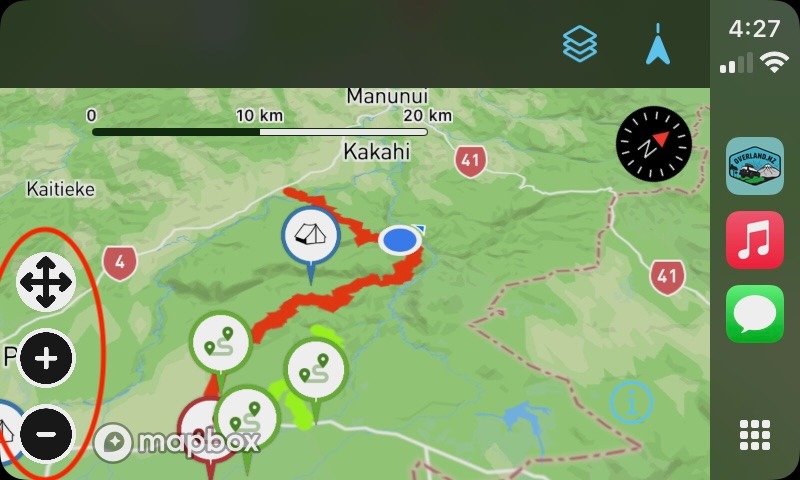
- You can pan around the map with the on-screen controls, and on supported CarPlay screens you can also drag the map directly.
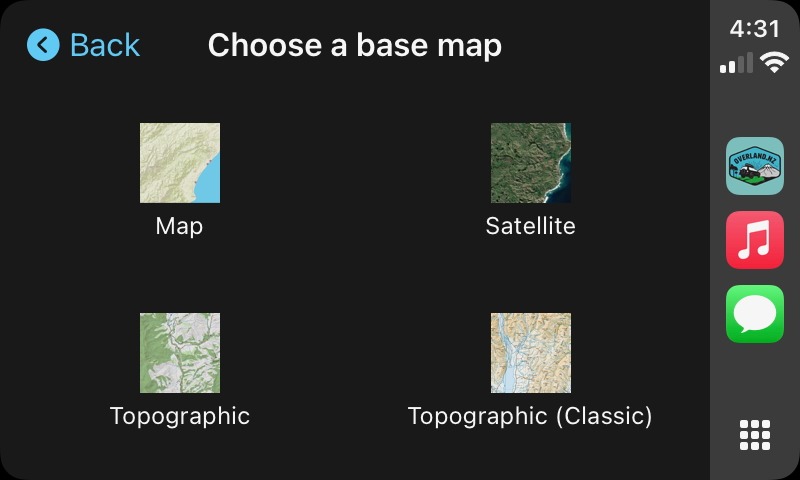
Tap the Layers icon to change the base map - you get a choice of the standard 4 base map types in Overland Navigator.
A small overlay in the bottom-left of the map shows your current speed, altitude, and heading - updated in real time as you move.
You can record your GPS route directly from CarPlay without touching your phone.
- Tap the Record button (circle icon) in the nav bar to start a recording. A brief on-screen alert confirms it has started.
- Tap the Stop button to end the recording. The route is automatically saved and uploaded.
If CarPlay disconnects while a recording is in progress, the session is saved automatically.
Use What’s here to list the tracks and campsites currently visible on the map. From there you can open the detail card for an item and:
- Review its key details
- Start Directions for in-car turn-by-turn guidance
- Open the destination in Maps instead
You can also use the Nearby tracks shortcut to jump straight into nearby track options.
For supported destinations, tap Directions from the item details card to start turn-by-turn guidance on the CarPlay screen.
While guidance is running, CarPlay shows:
- The active route on the map
- Upcoming maneuvers and distance remaining
- ETA and trip progress
- An End button so you can stop guidance without waiting for CarPlay to cancel it
If you enter a Navigator Points zone while CarPlay is active, an alert gives you 15 seconds to claim the points or dismiss it - no need to pick up your phone.
Apple CarPlay is a very restrictive environment - we’re heavily limited in what we’re allowed to do.
- Some account and subscription tasks still need to be done on your phone
- CarPlay remains a restricted environment, so some interactions are simplified compared with the full phone app