Using Apple CarPlay
With a compatible head unit in your 4WD you can load Overland Navigator up on your Apple CarPlay display and make sure you’re on route when out about.
Make sure your phone is connected to your car
Open Overland Navigator on your CarPlay screen
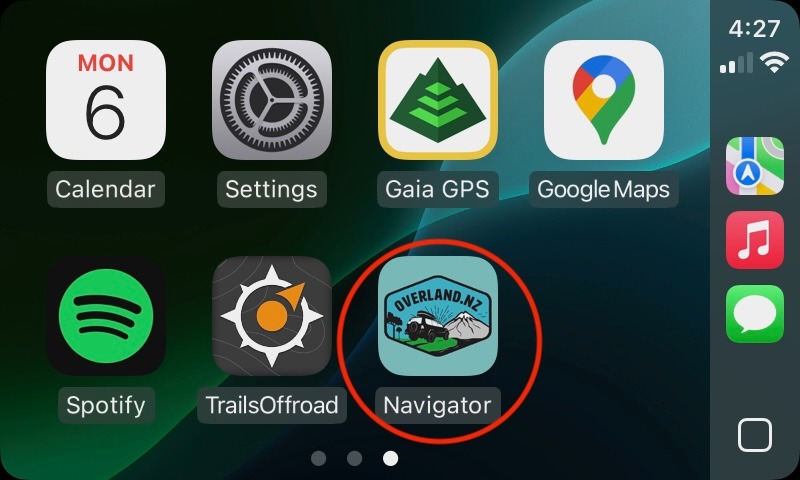
If Overland Navigator doesn’t launch, open it on your phone first
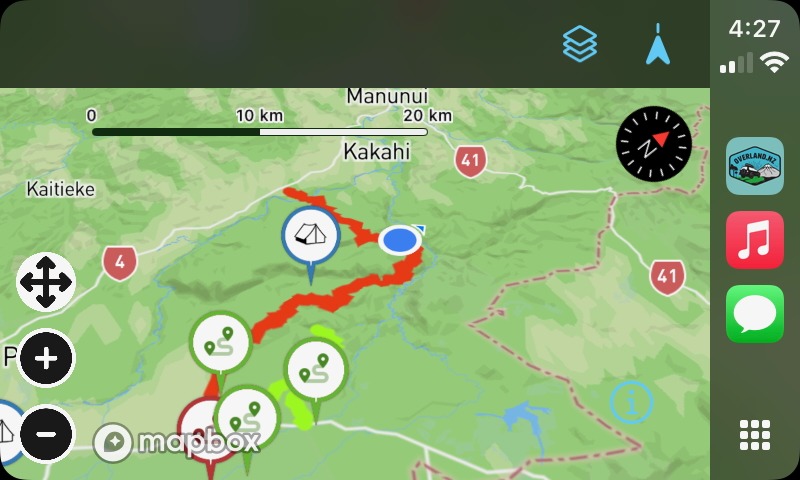
The default view will zoom in on your current location and display your heading and where you are. If you’re on a route, you can see how far through the route you are.
To control the map, tap one of the controls buttons. In order, they are ‘Change position’, ‘Zoom in’ and ‘Zoom out’.
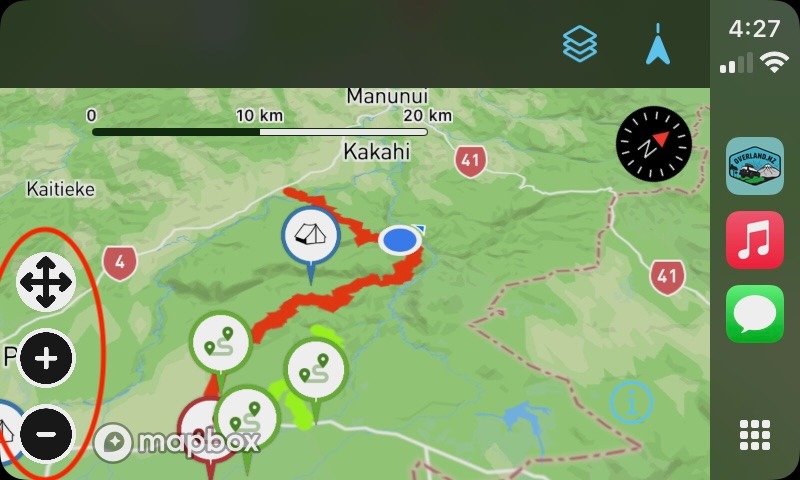
- You can pan around the map with the arrows. When you’re done, hit the ‘X’ button
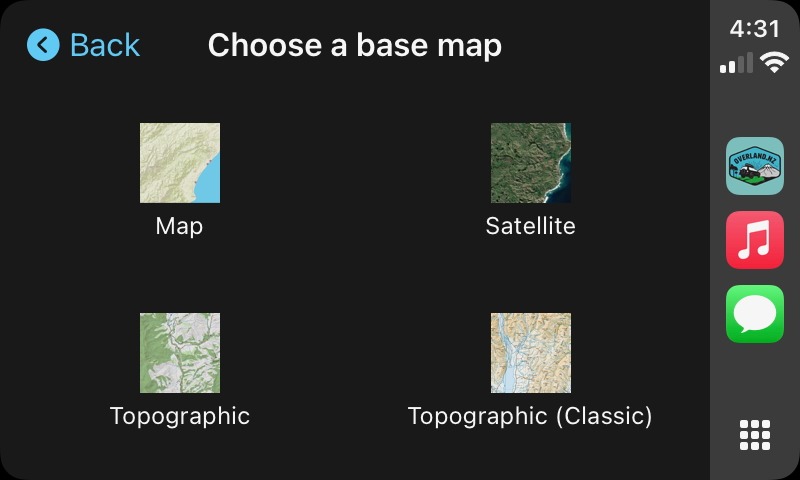
Tap the ‘Layers’ icon to change the base map - you get a choice of the standard 4 base map types in Overland Navigator.
Apple CarPlay is a very restrictive environment - we’re heavily limited in what we’re allowed to do.
- The items on the map aren’t interactive, they’re merely markers on the screen to follow - we tried, we really did - but it wouldn’t pass review.
- Dragging the map doesn’t currently operate as you’d expect (working on this)
- Campsites aren’t shown
- There’s no on-road routing - Apple Maps and Google Maps do this better than we ever could